If you're into this and want a cheap and stable system you could look into buying the Asus chromeboxes that Google sells for their 'meet' hardware, they're pretty neat, can be upgraded to 16G and there are some that have an i7 in them, you can typically get them at surplus prices because the sellers usually don't know what to do with them. The internal 32G SSD can be upgraded as well to a larger format one.
Note that the write protect switch is on a different location on the motherboard than indicated in most docs, it is a screw with a bunch of solderpads on it, look for a large diameter very flat screwhead, that's the one. Just unscrew it and leave it out.
Is this the i7 (10th gen) Chromebox you had in mind? Is currently going for $876 on Amazon. I guess surplus is the reasonable way to get them. Where is a good place to look? EBay?
ASUS Chromebox4 with Intel Core i7-10510U, 16GB RAM, M.2 PCIE 256GB SSD Storage, Power/DisplayPort Over Type C, Dual HDMI, Gigabit LAN, WiFi 6, MicroSD Card Reader, VESA Mount, Chrome OS https://www.amazon.com/dp/B08TGT71MG/
Do you think this could run Kodi? Looks like quite a capable machine and if you can get it for ~100$ maybe it could really be a better experience then using Raspberry.
Easily. The 8th gen CPUs are a nice sweet spot. Powerful enough graphics and cpu, energy efficient enough, 4 cores, while not new enough to be expensive.
Excellent, because while using Raspberry Pi is really cool just because his small it is. It very easily crashes especially if you're too fast. And because I've got an older model I had to restrict the resolution to 720p.
For those wondering why run Kodi on a TV. Simple the TV is to old to be in any way smart, but still works perfectly, so there no reason to replace it. Also it feels really good bragging to my brother what I can do in my dumb TV, that not even he can do on his smart TV. :P
I picked up a Lenovo Thinkpad x131e Chromebook for $45 on eBay. A few rough spots, but fully functional. I managed to upgrade the RAM (max 8GB), the mSATA (64GB ~$18), and even add a 2.5" drive.
It's replacing my Samsung N120 netbook as a daily user.
How do they perform? I run an older Mac Mini to do all my network routing, IP Camera recording, PVR, etc. I would expect they've got some decent graphics prowess seeing as how their sole job in life to capture and display video conferencing…
I used an older Chromebox as my desktop. If you get the decent ones, it's an Intel laptop cpu with decent (but not heroic) cooling and performs as you would expect from that. I don't think you get any controls for ram timings or voltage control, and generally the storage slots are very short, so you have limited options. It's great as a low cost, no bs, small form factor platform, but if you want performance and can go bigger, desktop chips will run laps around it.
For network routing, I don't think I've seen a chromebox with two nics, so you need to be OK with USB networking or single nic routing (which can still be useful depending on the details).
Video conferencing isn't that hard these days, the iGPU handles video encode/decode and you're done.
My Asus Chromebox only does 2242, which I haven't seen in large capacity from reputable vendors. Maybe they increased the length for future Chromeboxes though.
You probably have the previous generation, the one I got is a chromebox 3, link to picture of MB provided above, you can check the SSD spot, the stand-off for the mount can be moved to an alternate position for a longer SSD on that one.
Be very careful when moving that stand off so you don't damage the circuitry.
Indeed, and not that much money either. But even if the longer screw position isn't there it usually is there electrically and you might be able to run a bigger unit anyway by removing the stand-off and using some double sided tape+a tie wrap. Not the most elegant solution but hey, this is hacking :)
I'm using one to run Ubuntu Studio and it works flawlessly, but since the box doesn't have internal audio I added a USB based audio card. The display hooked up to that box is a 32" Dell QHD monitor.
So basically just get the ones that have a higher end i7 or i5 it sounds like, upgrade RAM if necessary + SSD ( I am guessing its mSata or NVME) and then turn that little screw for write protection?


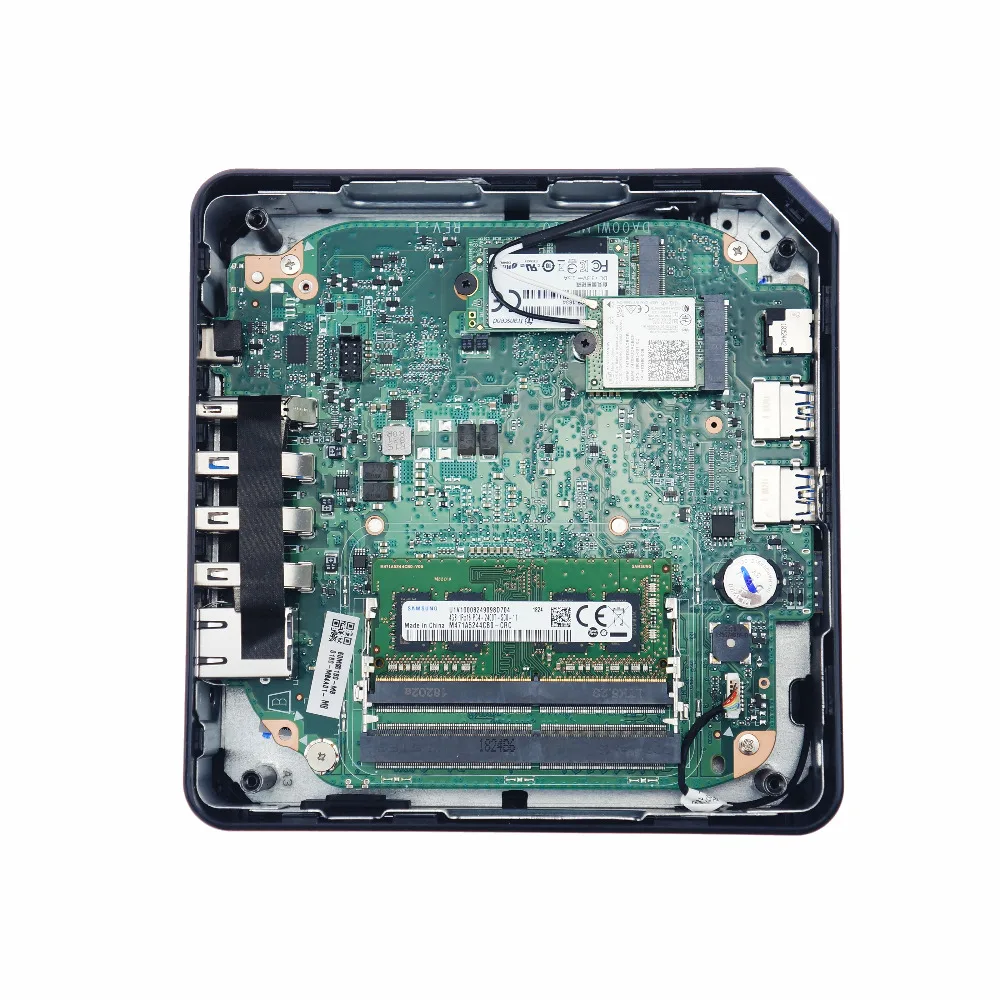
Note that the write protect switch is on a different location on the motherboard than indicated in most docs, it is a screw with a bunch of solderpads on it, look for a large diameter very flat screwhead, that's the one. Just unscrew it and leave it out.